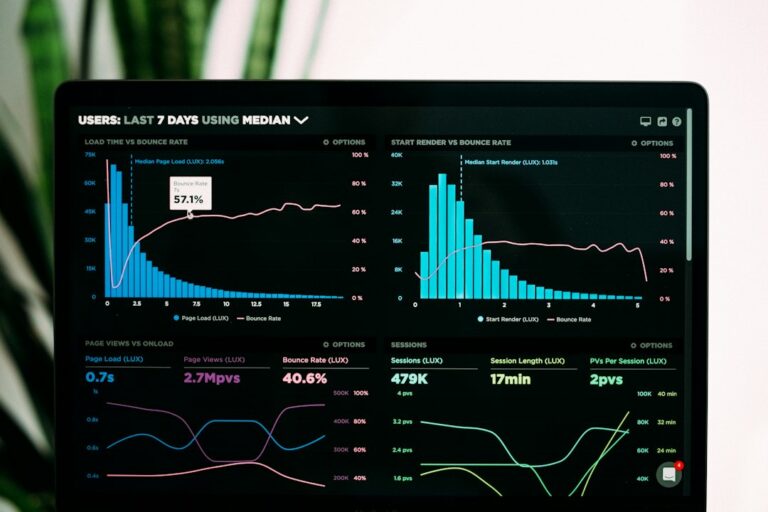

A fast Shopify store creates a better shopping experience, helps visitors find products more easily, and reduces the chance that slow pages interrupt a purchase. Store speed can also support search visibility because performance is one part of the broader user experience that search engines evaluate.
Shopify provides reliable hosting and a strong technical foundation, but store owners can still encounter slow load times caused by large images, app scripts, complex themes, and unnecessary design elements. The good news is that many speed improvements are practical, measurable, and achievable without rebuilding your entire store.
Why Shopify Store Speed Matters
Online shoppers expect pages to respond quickly, particularly on mobile connections. If a product page takes too long to become usable, a visitor may leave before viewing product details, adding an item to the cart, or completing checkout.
Speed affects more than the first page a visitor opens. A slow collection page can make product discovery frustrating, while delayed cart interactions can reduce confidence at an important stage of the buying journey. Improving performance should therefore be treated as both a technical task and a conversion-rate improvement project.
Useful performance measurements include loading speed, visual stability, and how quickly a page responds to user actions. Tools such as Google PageSpeed Insights, Lighthouse, and Shopify’s available performance reports can help identify problems, but test results should always be considered alongside real customer behavior and analytics.
Common Causes of a Slow Shopify Store
Before changing your theme or removing features, identify what is actually creating the delay. Common causes include:
- Oversized product, banner, or background images.
- Too many installed apps and app embed blocks.
- Third-party tracking, review, chat, and advertising scripts.
- Heavy themes with complex animations or large JavaScript bundles.
- Unused code left behind after an app is uninstalled.
- Large numbers of products, filters, recommendations, or promotional sections loaded at once.
- Custom code that runs on every page instead of only where it is needed.
Not every app or visual feature is a problem. The goal is to understand its effect and decide whether its value justifies its performance cost.
Optimize Shopify Images
Images are often one of the quickest opportunities for improvement because ecommerce stores typically use many product photos. Start by uploading images at the dimensions customers actually need. A source image that is several times larger than its displayed size increases the amount of data the browser must download.
Use suitable formats and compression while preserving enough detail for customers to inspect the product. Shopify can deliver optimized image variants, but uploading unnecessarily large source files can still create avoidable overhead. Review hero banners, collection images, product galleries, and decorative backgrounds first because they are commonly loaded near the top of the page.
Practical image improvements include:
- Resize images before uploading them.
- Use descriptive file names and meaningful alt text for accessibility and image search context.
- Avoid placing large images in sections that customers rarely see.
- Use fewer decorative background images when they do not support the buying decision.
- Check mobile layouts separately, since a desktop-sized banner may be excessive on a small screen.
Review Apps and Third-Party Scripts
Apps add useful functionality, but each app may introduce JavaScript, CSS, network requests, or tracking code. Over time, a store can accumulate overlapping tools for reviews, pop-ups, analytics, bundles, currency conversion, and customer support.
Create an inventory of installed apps and ask three questions: Is this feature still being used? Does another app provide the same function? Does the app need to load on every page? Removing an unused app from the Shopify admin is a good first step, but it is also worth checking the theme code for leftover snippets, script tags, or app embed settings.
For essential tools, configure them carefully. A review widget may only need to load on product pages, while a post-purchase survey does not need to run on the homepage. Where an app offers delayed loading or selective placement, use those settings when they do not interfere with customer interactions.
Choose and Configure Your Theme Carefully
Your theme controls much of the store’s structure, styling, and front-end behavior. A modern, well-maintained theme can provide a strong foundation, but performance can decline as more sections, animations, sliders, and custom features are added.
Review the homepage with a critical eye. Does every carousel, video, countdown, and animation help customers understand the offer? If not, simplify the layout. A clear page with focused navigation and strong product discovery is often more useful than a crowded design that requires many files and scripts to render.
Keep your theme updated when appropriate, but test changes in a duplicate theme before publishing. A staging-style workflow helps you check navigation, product templates, cart behavior, apps, and mobile layouts without disrupting active shoppers.
Improve Loading on Mobile Devices
Mobile shoppers may use slower or less stable connections, so mobile performance deserves separate attention. Test key templates on an actual phone as well as in browser tools. Focus on the pages that matter most to revenue, including the homepage, collection pages, product pages, cart, and landing pages used in campaigns.
Reduce the amount of content loaded immediately. For example, move secondary information below the main product details, avoid autoplay video on small screens, and use lazy loading for images that are below the initial viewport. Important product imagery should remain available promptly, while less important content can load as the visitor scrolls.
Clean Up Custom Code
Custom development can make a Shopify store more effective, but poorly organized code can increase maintenance and slow down the front end. Review custom Liquid, JavaScript, and CSS for repeated functions, unused selectors, and scripts that run on pages where they are not required.
Load assets conditionally whenever possible. A script for a product customization tool should not be included on every informational page. Likewise, styles for a special landing page should not become part of the global stylesheet if they are never used elsewhere.
Make changes incrementally and document them. Removing code without understanding its purpose can break product options, tracking, or checkout-related experiences. If a performance issue involves complex theme logic, a Shopify developer can help audit the implementation safely.
Measure Results the Right Way
Run a baseline test before making changes. Record the page tested, device type, connection, date, and key results. Then retest after each meaningful update so you can see which actions created a measurable difference.
Do not focus on one score alone. A high laboratory score does not automatically guarantee that every customer has a perfect experience, and a lower score may reflect a feature that provides important business value. Combine technical tests with Shopify analytics, conversion data, customer feedback, and reports about abandoned carts or difficult navigation.
Prioritize improvements using a simple framework:
- Fix issues that affect important pages and many visitors.
- Address large images and unnecessary scripts before minor visual details.
- Protect essential shopping and tracking functionality.
- Retest after each major change.
- Continue monitoring after installing new apps or launching campaigns.
A Practical Shopify Speed Checklist
- Test the homepage, collection page, product page, and cart on mobile.
- Compress and resize large images.
- Remove unused apps and review app embeds.
- Check for leftover code from deleted apps.
- Limit heavy animations, autoplay media, and unnecessary sliders.
- Load scripts and styles only where they are needed.
- Use lazy loading for suitable below-the-fold content.
- Review theme updates and test them before publishing.
- Monitor performance after adding new functionality.
Get Expert Help With Shopify Performance
Shopify store speed optimization is an ongoing process rather than a one-time score improvement. The most effective approach combines technical testing, thoughtful design decisions, clean theme code, and a clear understanding of what customers need to complete a purchase.
If you need help auditing your theme, reviewing app impact, improving mobile performance, or implementing custom Shopify enhancements, contact Sarrloop to discuss your store development and optimization goals. A focused review can help you prioritize improvements that support both user experience and business growth.
Related: Custom E-commerce Development: Build a Store That Grows With Your Business
Related: Payment Gateway Integration: A Practical Guide for WordPress, WooCommerce and Shopify
Related: Custom WooCommerce Development: Build a Store That Fits Your Business
Need help with Shopify speed optimization?
Sarrloop works with businesses in Texas, Nevada, across the USA and in Bangladesh. See our Website Security & Speed Optimization service or get a free quote within 24 hours.