
WooCommerce Development: Build a Scalable Online Store That Converts

WooCommerce development gives businesses a flexible way to build and manage an online store with WordPress. It can support anything from a small product catalogue to a complex ecommerce operation with multiple payment methods, shipping rules, customer accounts, subscriptions, and third-party integrations.

However, installing WooCommerce is only the beginning. A successful store needs thoughtful planning, reliable development, strong performance, and an experience that makes it easy for customers to browse and buy. This guide explains the most important considerations for building a WooCommerce website that supports real business goals.

What Is WooCommerce Development?

WooCommerce development is the process of creating, customizing, improving, and maintaining an ecommerce website powered by WooCommerce and WordPress. It may include design implementation, custom functionality, payment integration, product setup, performance optimization, security improvements, and ongoing support.

Some businesses can launch successfully with a well-configured theme and a small number of extensions. Others require custom development because their products, pricing, fulfilment, or internal systems do not fit standard ecommerce workflows.

For example, a retailer may need location-based delivery fees, while a B2B supplier may need account-specific pricing and approval-based orders. These requirements should be considered before development begins rather than added hurriedly after launch.

Why Businesses Choose WooCommerce

WooCommerce is popular because it combines the publishing capabilities of WordPress with the core features needed to sell online. It also provides room for customization as a business grows.

  • Flexible product management: Sell physical products, digital downloads, memberships, subscriptions, bookings, or product variations.
  • Customizable customer journeys: Adapt product pages, carts, checkout flows, and account areas to suit your audience.
  • Integration options: Connect the store with payment gateways, accounting software, email platforms, shipping tools, marketplaces, and customer relationship systems.
  • Content and commerce together: Use WordPress content such as buying guides, case studies, and educational articles to support organic search and customer decisions.
  • Control over the platform: Businesses can choose their hosting, extensions, design system, and development approach.

These advantages do not remove the need for technical planning. Poorly selected plugins, weak hosting, or excessive customization can create maintenance and performance problems later.

Key Stages of WooCommerce Development

1. Define business and customer requirements

Begin by documenting how the business sells and how customers expect to purchase. This includes product types, catalogue size, pricing rules, delivery regions, tax requirements, returns, customer accounts, and expected order volumes.

It is also useful to identify the systems that need to exchange data with WooCommerce. For instance, an inventory system may need stock updates from the store, while an email platform may need customer and order information for marketing automation.

2. Plan the store structure

A clear structure helps shoppers find products quickly and helps search engines understand the relationship between pages. Plan categories, product attributes, filters, internal search, navigation, and URL patterns before uploading hundreds of products.

A clothing store, for example, might organize products by collection and use attributes such as size, color, and material for filtering. These attributes should be consistent across the catalogue so customers can compare products easily.

3. Select a suitable theme and design system

The theme should support the store’s brand while keeping usability and performance in focus. A visually impressive design is not effective if it makes product information difficult to scan or checkout difficult to complete.

Important design areas include:

  • Clear product images, pricing, availability, and delivery information
  • Responsive layouts for mobile, tablet, and desktop screens
  • Visible calls to action and useful product filters
  • Accessible typography, color contrast, and keyboard navigation
  • A checkout process with minimal distractions and unnecessary fields

4. Configure products, payments, and shipping

Product data should be accurate, complete, and easy to maintain. Each product may require descriptions, images, specifications, stock information, variations, related products, and structured metadata.

Payment configuration should reflect the preferences of the target market while meeting the business’s operational needs. Test successful payments, failed payments, refunds, cancelled orders, and customer notifications before launch.

Shipping rules deserve similar attention. A store may need free shipping above a threshold, different rates by region, local collection, oversized-item charges, or delivery dates based on stock location. These rules should be tested with realistic addresses and baskets.

Custom WooCommerce Features

Standard WooCommerce functionality can cover many common requirements, but custom development may be appropriate when a store needs a unique workflow. Examples include:

  • Custom product configurators for made-to-order products
  • Wholesale pricing based on customer role or account status
  • Quote requests instead of immediate checkout
  • Bookings with availability calendars and capacity limits
  • Integration with an enterprise resource planning or inventory system
  • Custom order statuses and fulfilment dashboards
  • Subscription or recurring purchase workflows

Custom functionality should be built in a way that remains maintainable. A short-term workaround may appear inexpensive, but it can become costly if it breaks during updates or depends on undocumented changes to another plugin.

Performance and Technical SEO

Store performance affects usability, especially for mobile visitors and customers using slower connections. WooCommerce websites often contain many images, scripts, product variations, and third-party services, so optimization should be planned from the start.

Practical improvements may include:

  • Using dependable hosting with resources appropriate for store traffic
  • Compressing and properly sizing product images
  • Reducing unnecessary plugins and scripts
  • Using caching and a content delivery network where appropriate
  • Optimizing database queries and scheduled tasks
  • Testing key templates such as the homepage, category pages, product pages, cart, and checkout

Technical SEO should cover crawlable navigation, descriptive page titles, logical headings, canonical handling, product structured data, indexation controls, and useful internal links. Product pages should answer customer questions rather than relying on copied manufacturer descriptions.

Security, Maintenance, and Testing

Security is an ongoing responsibility. Keep WordPress, WooCommerce, themes, and extensions updated through a controlled process. Use strong administrator authentication, limit access according to user roles, and maintain reliable backups that can be restored.

Before launch, test the complete customer and administrator experience. A practical test plan should include:

  • Product searches, filters, variations, and stock changes
  • Guest checkout and registered customer checkout
  • Payments, refunds, emails, and order statuses
  • Coupons, taxes, shipping calculations, and delivery restrictions
  • Mobile layouts and accessibility basics
  • Analytics, conversion tracking, and contact forms

After launch, monitor errors, abandoned carts, page performance, failed payments, and customer support questions. These signals often reveal improvements that were not obvious during development.

How to Choose a WooCommerce Development Partner

The right development partner should understand both the technical platform and the commercial objectives behind the store. Ask how they approach discovery, plugin selection, testing, security, performance, documentation, and post-launch support.

It is also helpful to request examples of relevant work and ask how the team handles scope changes. A clear process should explain deliverables, responsibilities, milestones, testing stages, and the support available after launch.

Be cautious of proposals that focus only on visual design or promise complex functionality without discussing maintenance, integrations, data quality, and operational workflows. A reliable store is more than a collection of attractive pages.

Plan Your WooCommerce Project for Long-Term Growth

The strongest WooCommerce websites are built around a clear roadmap. Start with the features that directly support sales and customer service, then use real data to decide what should be improved next. This may include better filtering, faster checkout, improved product content, automated fulfilment, or new sales channels.

Whether you are launching a new store, rebuilding an outdated website, or adding custom ecommerce functionality, Sarrloop can help you plan and develop a WooCommerce solution aligned with your business requirements. Contact Sarrloop to discuss your project, technical needs, and next steps.

Related: E-Commerce Customization: How to Build a Store That Converts and Scales

Related: JavaScript Development for Modern Businesses: Build Faster, Scalable Web Experiences

Related: API Integration for Businesses: A Practical Guide to Connected Systems

Need help with your website?
🚀 Hire Me for WordPress

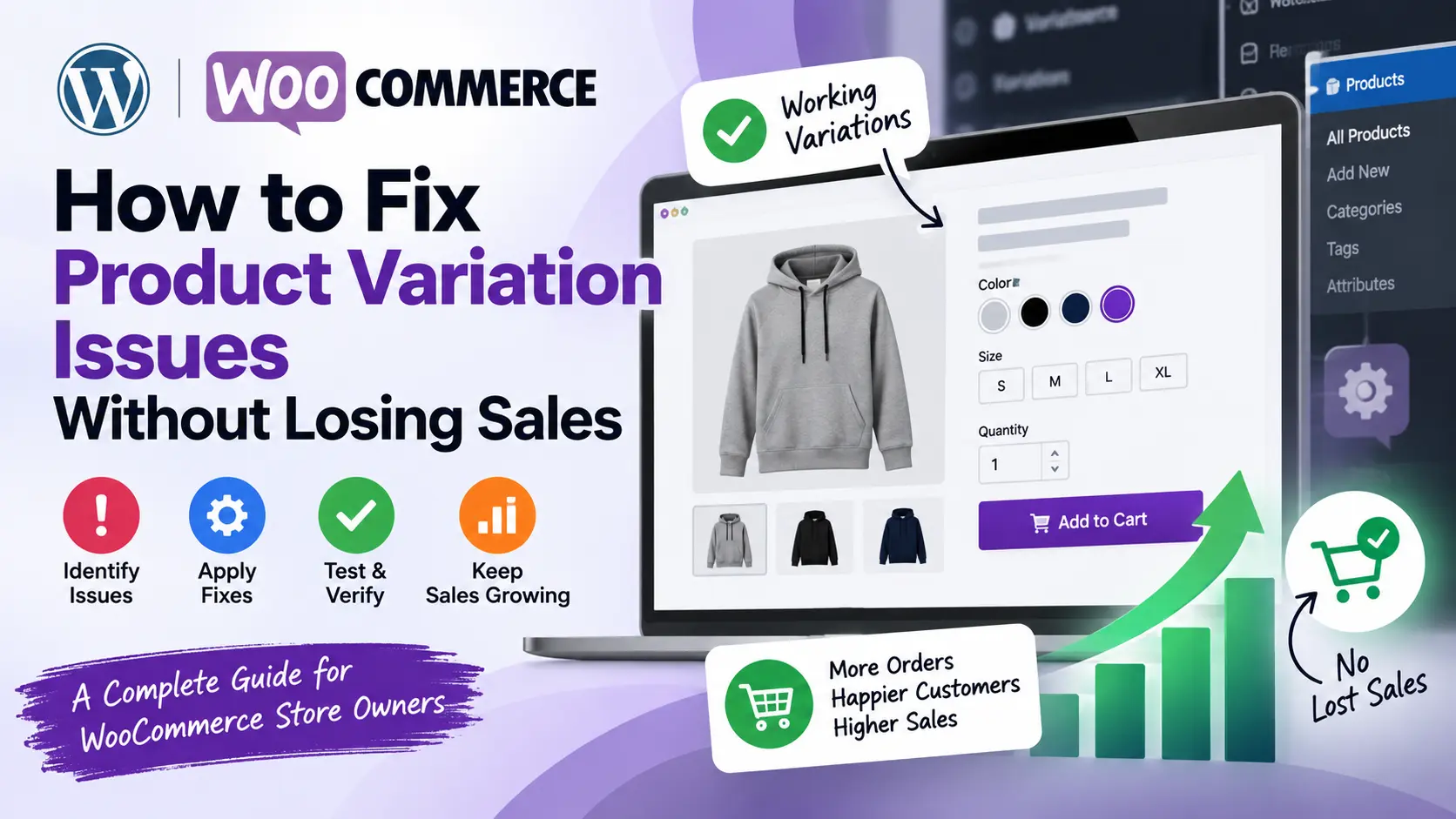
How to Fix WooCommerce Product Variation Issues Without Losing Sales

WooCommerce product variations make it possible to sell different sizes, colors, materials, and configurations from a single product page. When they work correctly, customers can quickly select what they need and add it to their cart. When they fail, customers may see incorrect prices, unavailable options, empty dropdowns, or an Add to Cart button that does nothing.

These problems can directly affect conversions, especially when customers are ready to buy. The good news is that many variation issues can be diagnosed systematically without immediately rebuilding your product catalog. This guide explains how to fix WooCommerce product variation issues, identify the underlying cause, and reduce the risk of losing sales while changes are being made.


Need Help With Your Website?

If you need professional help with
WooCommerce development,
custom development, troubleshooting or website improvements,
you can request a service through my Fiverr profile.


View My Fiverr Service →

Why WooCommerce Product Variations Stop Working

Variation problems are usually caused by configuration errors, outdated software, conflicts, or performance limitations. Common causes include:

  • Attributes were created but not marked for use in variations.
  • Individual variations are missing, disabled, or out of stock.
  • Variation combinations do not match the available attributes.
  • A theme or plugin is interfering with WooCommerce scripts.
  • Product data is cached and the customer is seeing an old version.
  • JavaScript errors prevent variation selection from updating correctly.
  • Large products contain more variation combinations than the site can handle efficiently.
  • Custom code, filters, or templates are outdated after a WooCommerce update.

Before changing anything, test the issue from the customer’s perspective. Open the product in a private browser window, try different combinations, check the price and stock message, and attempt to add the item to the cart. This helps confirm whether the problem affects all visitors or only logged-in users, administrators, or a particular browser.

First Steps Before You Make Changes

Record the problem

Write down the affected product, the exact options selected, the browser and device used, and what happens after the selection. Screenshots and screen recordings can be useful if a developer needs to investigate the issue. Also check whether the problem affects one product or multiple variable products.

Protect the live store

Create a full backup of your website and database before editing products, updating plugins, or changing code. If your hosting provider offers staging, reproduce the issue there first. A staging site allows you to test updates and conflict fixes without disrupting active shoppers.

Check recent changes

Think about what changed before the issue appeared. A new payment plugin, theme update, caching configuration, custom script, or WooCommerce version may be responsible. Reviewing recently installed or updated components can narrow the investigation considerably.

Check Product Attributes and Variation Settings

The most basic variation problems often come from incorrect attribute settings. In the product editor, open the affected variable product and review the Attributes section.

Confirm that attributes are enabled for variations

Each attribute used to create a variation must have the option to be used for variations enabled. For example, if a shirt has Small, Medium, and Large sizes, the Size attribute must be available for variations. Adding terms to the product without enabling this setting will not create usable combinations.

Check the exact attribute terms

Make sure the terms assigned to the product match the terms used in the variations. Small differences such as “Black” versus “black” or a trailing space can create unexpected results. If you use global attributes, review them under the product attribute settings and avoid creating duplicate terms with slightly different names.

Review every variation

Open the Variations section and confirm that each important combination has:

  • The correct attribute values.
  • A regular price, and a sale price if applicable.
  • A valid stock status and stock quantity when inventory tracking is enabled.
  • An enabled status rather than a disabled status.
  • A product image if the selected option should change the image.
  • Any required SKU, weight, dimensions, or shipping information.

A variation without a price often cannot be purchased. Similarly, a variation marked out of stock may disappear from the customer’s available choices depending on your WooCommerce settings.

Fix Missing or Incorrect Variation Combinations

WooCommerce does not automatically make every possible combination usable unless variations have been created for those combinations. A product with three colors and four sizes can have twelve combinations, but some may not exist in your catalog.

In the product editor, use the variation tools to create variations from all attributes or add individual combinations manually. Review the generated list afterward instead of assuming every row is correct. Automatic generation can create combinations you do not sell, while manual editing can leave required combinations missing.

For large catalogs, importing variation data with a carefully structured CSV can be faster than editing each product individually. Always test an import on staging or a small group of products first. Confirm that attribute names, variation SKUs, prices, stock values, and parent product references are mapped correctly.

Clear Caches and Regenerate Product Data

Cache systems can make a correctly configured product appear broken. Clear your page cache, object cache, content delivery network cache, and browser cache after making variation changes. If you use a caching plugin, check whether it is caching product pages too aggressively or delaying the JavaScript required by WooCommerce.

WooCommerce also maintains internal data used by products and variations. From the WooCommerce status and tools area, review available maintenance options for clearing transients and regenerating lookup tables. Use these tools carefully and create a backup first. The exact tools available depend on your WooCommerce version.

After clearing caches, test the product as a guest on both desktop and mobile. Do not rely only on an administrator session because logged-in users may receive different cached content or permissions.

Investigate Plugin and Theme Conflicts

If the product data appears correct but the selector still fails, a conflict is a likely cause. Variation forms rely on JavaScript, AJAX requests, WooCommerce templates, and theme styling. A plugin that changes product layouts, prices, swatches, optimization, or cart behavior can interfere with those components.

Use a controlled conflict test

On staging, temporarily switch to a standard WooCommerce-compatible theme and disable non-essential plugins. Test the product after each change. If the problem disappears, reactivate components one at a time until the source is identified.

Do not deactivate security, payment, or other essential plugins on a live store without planning for the impact. If testing must happen on production, use a maintenance window and take a backup first.

Check browser console errors

Open the browser developer tools and look for errors in the Console tab while selecting a variation. Errors referencing JavaScript files, blocked requests, undefined functions, or failed AJAX calls can reveal why the form does not update. Also inspect the Network tab for failed requests when a variation is selected.

Common technical causes include incorrectly combined JavaScript files, scripts loaded in the wrong order, outdated variation templates, and custom code that expects an older WooCommerce behavior. Avoid simply hiding console errors; the underlying conflict should be corrected.

Improve Performance on Products With Many Variations

Products with many combinations can be slow to load or difficult for WooCommerce to process. A slow product page increases the chance that customers leave before selecting an option.

Start by removing combinations you do not actually sell. Use clear stock rules and avoid creating unnecessary variations solely to represent unavailable products. Compress product images, reduce unnecessary scripts, and make sure your hosting environment has enough PHP memory and processing capacity.

If a product has a very large number of options, consider a different catalog structure. Separate products may be better for substantially different models, while a product add-on or product configurator may be more suitable for complex customizations. The right approach depends on inventory management, search requirements, pricing, and the customer experience.

Keep Customers From Hitting a Broken Product Page

Fixing the technical problem is important, but you should also protect sales while investigating it. If only one variation product is affected, temporarily feature an alternative product or provide a direct way for customers to contact your team. If a known option is unavailable, explain that clearly rather than showing a selector that appears broken.

Review your analytics and support messages for signs of variation-related problems. Look for product pages with high exit rates, repeated searches for a specific size or color, or customer questions about missing options. These signals can help identify issues that are not obvious during a quick manual test.

After applying a fix, test the complete purchase path: select multiple combinations, add the product to the cart, change the quantity, proceed to checkout, and verify the order details. Check confirmation emails and the order admin screen as well. A variation can appear correct on the product page but still pass incorrect data to the cart or order.

When to Get Technical Help

Consider professional assistance when the issue involves custom theme code, multiple plugins, failed AJAX requests, a large product import, or a problem that returns after every update. A developer can inspect WooCommerce logs, compare template versions, trace JavaScript conflicts, and test database or server-level issues more efficiently.

Useful information to provide includes the affected URLs, steps to reproduce the problem, recent changes, screenshots, browser console errors, WooCommerce system information, and a list of active plugins. Clear details reduce investigation time and help prevent changes that could create new checkout problems.

For ongoing reliability, keep WordPress, WooCommerce, themes, and extensions updated on a staging site before production deployment. Document customizations and avoid editing plugin files directly, since updates will overwrite those changes. WooCommerce customization, PHP development, JavaScript debugging, and website performance optimization may all be relevant when a variation issue involves more than product settings.

Frequently Asked Questions

Why is the Add to Cart button missing for a variable product?

The product may have no valid variation selected, or the selected variation may be missing a price, disabled, or out of stock. Check the variation data first, then investigate JavaScript errors and plugin conflicts if the settings are correct.

Why do WooCommerce variations show the wrong price?

Review the regular and sale prices assigned to each variation. Also check currency, discount, dynamic pricing, and subscription plugins. Cached product data or custom price scripts can cause an old or incorrect price to appear.

Why are some variation options not visible?

The relevant variation may not exist, may be out of stock, or may be configured with a different attribute term. Stock display settings, swatch plugins, and theme scripts can also hide options. Compare the product attributes with the variation rows.

Can clearing the cache fix WooCommerce variations?

It can fix issues caused by stale product data or cached JavaScript, but it will not correct missing prices, invalid combinations, or code conflicts. Clear all relevant caches and then retest as a logged-out visitor.

How can I test a fix without risking current orders?

Use a staging copy of the store, test the product and checkout flow there, and create a backup before deploying the approved change. If staging is unavailable, schedule production changes during a low-traffic period and monitor orders afterward.

Conclusion

To fix WooCommerce product variation issues without losing sales, start with product attributes, variation prices, stock, and combinations before moving into caching, JavaScript, plugin, theme, and server checks. Test the full customer journey after every change, and use staging whenever possible. A structured troubleshooting process can restore a reliable buying experience while reducing the risk of introducing new problems to your WooCommerce store.

How to Fix WooCommerce Checkout Errors and Failed Orders

Checkout errors are among the most damaging WooCommerce problems because they stop customers at the final stage of a purchase. A shopper may add products to the cart, enter their details, and then see a vague message such as “There was an error processing your order.” In other cases, the payment succeeds but the order remains pending, the checkout page keeps loading, or required fields disappear entirely.

To fix WooCommerce checkout errors, you need to identify where the transaction is failing rather than changing random settings. The cause may be a payment gateway, shipping rule, plugin conflict, JavaScript error, expired session, server configuration, or a customization in the checkout template. This guide explains a practical process for finding the cause and restoring a reliable checkout experience.

First, Identify the Type of Checkout Failure

Start by reproducing the problem and recording exactly what happens. Test with a product that is in stock, a normal customer account, and a separate browser or private window. Note the cart contents, shipping address, payment method, error message, and whether an order is created.

Most WooCommerce checkout failures fall into one of these categories:

  • Checkout does not load: The page is blank, stuck, or continually refreshing.
  • Fields do not update: Shipping methods, taxes, or totals fail to refresh after an address is entered.
  • Payment fails: The gateway rejects the transaction or returns an unclear error.
  • Order is missing: The customer is charged, but WooCommerce does not show a completed order.
  • Order status is incorrect: An order remains pending, failed, or on hold even after payment.
  • Validation blocks submission: Customers cannot proceed because of required fields or formatting rules.

Testing in a staging environment is safest. If you must troubleshoot on a live store, create a backup first and avoid disabling security or payment controls for longer than necessary.

Check WooCommerce and WordPress Logs

Logs often provide more useful information than the message shown to customers. In WordPress, go to WooCommerce > Status > Logs and review entries created around the time of the failed order. Look for payment gateway responses, webhook errors, PHP warnings, fatal errors, and API connection failures.

Also review WooCommerce > Status. Pay attention to the WordPress and WooCommerce versions, PHP version, enabled extensions, database information, and any template overrides that are out of date. A checkout template copied into your theme may continue working for months and then break after a WooCommerce update.

If logs are not detailed enough, enable WordPress debugging temporarily in a staging environment. A typical configuration uses the following settings in wp-config.php:

define( 'WP_DEBUG', true );
define( 'WP_DEBUG_LOG', true );
define( 'WP_DEBUG_DISPLAY', false );

This writes errors to wp-content/debug.log without displaying technical details to shoppers. Turn debugging off after testing, and never expose stack traces or API credentials publicly.

Test for Plugin and Theme Conflicts

Plugin conflicts are a common reason checkout works in one situation but fails in another. Security plugins, caching tools, discount extensions, product add-ons, subscription plugins, custom checkout fields, and payment integrations can all affect the checkout process.

Use a controlled conflict test

  1. Back up the site or use a staging copy.
  2. Temporarily switch to a standard WooCommerce-compatible theme.
  3. Deactivate all plugins except WooCommerce and the payment gateway being tested.
  4. Test checkout with a simple product and a test payment method.
  5. Reactivate plugins one at a time until the error returns.

If the problem disappears when the theme is changed, inspect custom checkout templates, functions, filters, and scripts. If the issue returns after enabling a plugin, check that plugin’s settings and compatibility notes. Do not leave unrelated plugins disabled on a production site without understanding their purpose.

A browser console can reveal front-end conflicts. Open the browser developer tools, select the Console tab, and submit checkout. Errors involving JavaScript, blocked requests, undefined functions, or failed AJAX calls may explain why totals or payment fields do not update.

Inspect JavaScript, AJAX, and REST Requests

WooCommerce checkout relies on background requests to calculate totals, update shipping methods, create orders, and communicate with payment providers. A JavaScript error can stop these requests before the server receives the customer’s data.

In the browser developer tools, open the Network tab and filter for requests containing terms such as update_order_review, checkout, or wc-ajax. Check the response status and response body. A 403 may indicate a security rule or nonce problem. A 500 usually points to a PHP or server error. A 200 response with an error message may indicate invalid checkout data or a gateway rejection.

Common causes include:

  • Minification or combination of JavaScript files in the wrong order.
  • Cached checkout pages or stale checkout fragments.
  • Blocked admin-ajax.php, REST API, or payment webhook requests.
  • Custom scripts that modify checkout fields incorrectly.
  • Mixed-content problems caused by HTTP assets on an HTTPS page.

Exclude cart, checkout, and account pages from full-page caching. Depending on the gateway, you may also need to exclude callback, webhook, or API endpoints from aggressive firewall rules and caching layers.

Verify Payment Gateway Settings

When the error appears after the customer clicks the payment button, investigate the gateway before changing the checkout design. Confirm that the gateway is enabled, credentials are correct, and the selected mode matches your test. Test credentials will not work in live mode, and live credentials should not be used casually in a staging environment.

Check the following items:

  • API keys, secret keys, merchant IDs, and signing secrets.
  • Test versus live mode.
  • Currency and supported countries.
  • Required billing details and card verification settings.
  • Webhook or callback URLs.
  • SSL certificate validity and HTTPS configuration.
  • Gateway-specific logs and decline messages.

A generic payment error may actually be a bank decline, an unsupported currency, an incorrect address verification result, or a blocked fraud check. The gateway dashboard usually contains the more precise reason. If a customer is charged but no order is completed, do not immediately ask them to pay again. First confirm whether WooCommerce created an order and whether the gateway sent a successful webhook.

Understand pending, failed, and on-hold orders

A pending payment order may have been created before payment was confirmed. A failed order usually means the payment attempt was rejected or could not be completed. An on-hold order may require manual confirmation, bank transfer verification, or another gateway event.

Compare the order notes with the gateway dashboard. If payment was successful but the order remains pending, investigate webhook delivery, firewall restrictions, site URL mismatches, and server response codes. Avoid manually changing an order to processing until payment has been verified.

Review Shipping, Tax, and Address Rules

Checkout can fail when WooCommerce cannot find a valid shipping method or calculate tax for the customer’s address. Confirm that the shipping zone includes the destination country, state, or postcode. Then verify that at least one shipping method is available for the cart and that free-shipping minimums or product restrictions are configured correctly.

Useful tests include:

  • Try a known postcode inside a configured shipping zone.
  • Test a cart containing only a physical product.
  • Test a virtual or downloadable product separately.
  • Temporarily disable a complex shipping rule on staging.
  • Check whether tax settings require a valid address before totals can update.

If the checkout button is disabled after an address is entered, look for a missing shipping method, invalid postcode format, or a custom validation rule. Shipping and tax extensions should also be updated and tested with the current WooCommerce version.

Clear Sessions, Caches, and Stale Checkout Data

WooCommerce uses sessions to store cart and checkout information. An expired or corrupted session can produce incorrect totals, empty carts, repeated checkout errors, or payment mismatches.

Ask the customer to test in a private browser window, but also clear server-side and application caches. In WooCommerce, review the tools available under WooCommerce > Status > Tools, including expired transients and session cleanup. Use these tools carefully, especially on a busy store.

Confirm that caching is configured correctly. Cart, checkout, and account pages should normally be excluded from page caching. If a CDN or reverse proxy is in use, purge its cache after changing checkout scripts or payment settings. Make sure the site uses one consistent URL format, such as HTTPS with or without the www prefix, rather than redirecting between variations during checkout.

Check Server Resources and PHP Configuration

A checkout request may fail because the server runs out of memory, reaches an execution limit, or rejects a request that is too large. Review hosting error logs and PHP logs for fatal errors, timeout messages, memory exhaustion, and permission problems.

Important items include:

  • PHP version supported by your WooCommerce and extension versions.
  • PHP memory limit and maximum execution time.
  • Database connectivity and available disk space.
  • Correct server time and timezone.
  • HTTPS and valid TLS configuration.
  • Firewall, ModSecurity, and rate-limiting rules.

Increasing limits may help with a resource problem, but it is not a substitute for finding inefficient code or a plugin that triggers excessive queries. If the failure occurs only during busy periods, ask the hosting provider for request logs and resource graphs.

Check Custom Checkout Code and Templates

Custom fields and checkout modifications should use WooCommerce hooks rather than replacing core files. A small mistake in a validation callback can reject every order, while an outdated template can remove a required nonce or payment element.

Search your theme and custom plugins for functions connected to checkout validation, field filtering, order creation, payment processing, and status changes. Review recent deployments and updates first. If a custom field is no longer required, remove both its front-end requirement and server-side validation.

Never edit WooCommerce plugin files directly. Those changes are overwritten during updates and make troubleshooting harder. Keep custom functionality in a child theme or a dedicated site plugin, and document changes so they can be tested after WooCommerce or PHP updates.

Use a Safe Testing Checklist

After making a change, test more than one successful order. Use a checklist that covers:

  • Guest checkout and logged-in checkout.
  • Desktop and mobile browsers.
  • At least one physical and one virtual product.
  • Different shipping addresses and postcodes.
  • Each active payment method.
  • Successful payments, declined payments, and cancelled payments.
  • Coupons, taxes, shipping charges, and order emails.
  • Refunds or payment reversals where relevant.

For payment testing, use the gateway’s official test cards and sandbox tools. Confirm that the order status, stock reduction, customer email, admin notification, and gateway transaction record all match the expected result.

When to Get Professional WooCommerce Help

Consider expert help when the issue involves lost payments, inconsistent order creation, custom payment integrations, repeated server errors, or a complex plugin conflict. A developer can trace browser requests, PHP logs, database records, webhooks, and gateway responses together instead of treating each symptom separately.

Sarrloop supports WordPress, WooCommerce, PHP, JavaScript, API integration, website bug fixing, and e-commerce development. Those services can be useful when a checkout problem requires code-level debugging, gateway integration work, performance improvements, or a safer long-term fix rather than a temporary setting change.

Frequently Asked Questions

Why does WooCommerce say there was an error processing my order?

The message is generic and may be caused by a declined payment, invalid gateway credentials, a missing shipping method, a plugin conflict, a JavaScript failure, or a server-side PHP error. Review WooCommerce and gateway logs to find the specific cause.

Why was the customer charged but no completed order appeared?

The payment may have succeeded while the final order request or webhook failed. Check the WooCommerce order list, gateway dashboard, webhook delivery history, and server logs before attempting another charge or manually changing the order status.

Can caching cause WooCommerce checkout errors?

Yes. Cached checkout pages, stale cart fragments, or cached payment scripts can submit outdated information. Exclude cart, checkout, and account pages from page caching and purge CDN or plugin caches after making changes.

How do I know whether a plugin is causing the problem?

Test on staging with only WooCommerce and the relevant payment gateway active. If checkout works, reactivate other plugins one at a time until the error returns. Then update, reconfigure, replace, or isolate the conflicting extension.

Should I disable all security features while troubleshooting?

No. Use a staging environment whenever possible and temporarily adjust only the rule suspected of blocking checkout. Keep HTTPS, authentication, backups, and payment protections enabled on the live store.

Conclusion

The most reliable way to fix WooCommerce checkout errors is to follow the transaction from the browser to WooCommerce, the server, and the payment gateway. Start with logs and a reproducible test, then check plugin conflicts, JavaScript requests, payment credentials, shipping rules, sessions, caching, server resources, and custom code.

Once the cause is identified, make one controlled change at a time and test the complete order lifecycle. This approach reduces repeat failures, protects customers from duplicate charges, and helps your store maintain a dependable checkout experience.


Need Help With Your Website?

Need professional help with
WooCommerce development,
custom development, troubleshooting or website improvements?


View My Fiverr Service →

Chat with us
Sarrloop © 2026. All Rights Reseved. Developed by Sarrloop.